
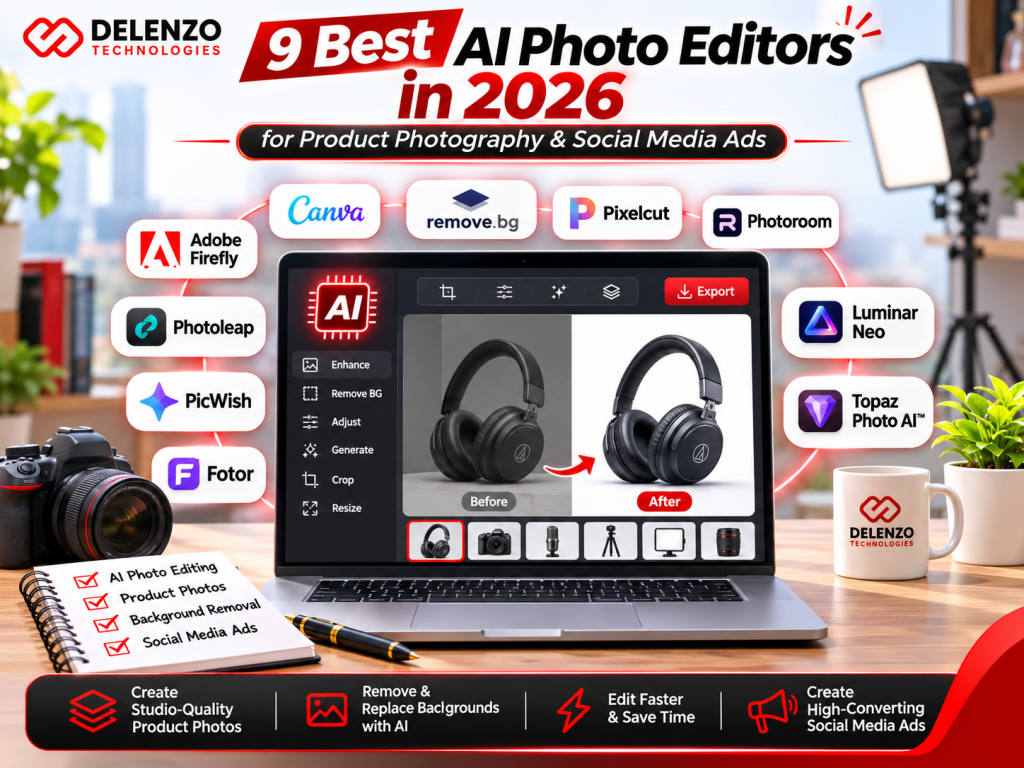
The best AI photo editor for product photography depends on the job. Photoroom is the pick for fast background removal, Photoshop for detailed retouching, and Canva for quick social ads. These tools matter because a clean product image once meant a studio booking and a retoucher. Today, a phone photo and a $10 app get you most of the way in under a minute. An AI photo editor for marketing saves hours, keeps every listing consistent, and gives you more ad versions to test at a lower cost. There is one catch. AI can bend a logo or shift a color. This guide covers which tool to pick, what each costs, and how to keep your images honest.
How to Compare the Best AI Photo Editing Tools
Compare the best AI photo editing tools on four things: how accurate the edit is, how sharp the export looks, how fast you finish a batch, and what the license allows. Price comes after those four.
Every price in this guide comes from published plan pages and pricing guides checked in November 2026. Plans change often, so confirm the number at checkout.
Test Criteria: Accuracy, Quality, Speed, and Ease of Use
A fair AI photo editor comparison runs the same product photo through every tool. Pick one hard image, such as a glass bottle or a sneaker with loose laces, and try it on each free plan.
| Criteria | What to check |
| Accuracy | Clean edges around glass, straps, and fine details. Logo and label text stay unchanged. |
| Quality | Export at 2,000 pixels or larger with no blur or odd texture. |
| Speed | Time needed to finish 20 images, start to export. |
| Ease of use | A new team member gets a usable image within 10 minutes. |
Free Plans, Pricing, Export Limits, and Licensing
AI photo editor pricing runs from free to about $39 a month, and the monthly fee is only part of the cost. Four limits decide what you really get:
- Watermarks. Photoroom and Fotor stamp free exports. Pixelcut does not.
- Export size. Free plans often cap resolution, which hurts zoom on product pages.
- AI credits. Photoshop bought alone includes 25 generative credits a month. The Adobe Photography plan includes 1,000.
- License. Photoroom and Fotor limit their free plans to personal use, so a paid plan is required for store listings and ads.
9 Best AI Photo Editors for Product Photography and Ads
The best AI photo editors 2026 has to offer for product work are Photoshop, Photoroom, Canva, Pixelcut, Lightroom, Fotor, Picsart, Luminar Neo, and Topaz Photo. Each one wins at a different task, so match the tool to the job you do most.
1. Adobe Photoshop: Best for Advanced Product Retouching
Photoshop is the strongest choice when a product image needs detailed, pixel-level fixes. Think dust on jewelry, a wrinkled label, or a reflection on a glass jar.
The Photoshop AI photo editor tools include Generative Fill, Generative Expand, and the Remove tool. You select an area, type what you want, and Photoshop fills it in.
- Best for: Hero images, packaging shots, and anything going to print.
- Price: $19.99 a month on the Photography plan, which adds Lightroom, 1TB of storage, and 1,000 generative credits. Photoshop alone is $22.99 with only 25 credits.
- Watch out for: A steep learning curve. Plan a few weeks of practice.
2. Photoroom: Best for Ecommerce Background Removal
Photoroom is the fastest way to turn a phone photo into a clean, white-background listing image. It was built for online sellers, and it shows.
Upload a photo and the Photoroom AI photo editor cuts out the product, adds a soft shadow, and offers ready-made backgrounds. Batch mode handles a full product drop in one session.
- Best for: Shopify, Etsy, and Amazon sellers with many SKUs.
- Price: Pro is $12.99 a month, or $7.50 a month billed yearly.
- Watch out for: Free exports carry a watermark and are for personal use only. Pro includes 1,000 exports a month.
3. Canva: Best for Quick Social Media Ad Creatives
Canva is the easiest tool for turning a product photo into a finished ad with text, a logo, and a call to action. No design background is needed.
Inside the Canva AI photo editor, Background Remover, Magic Edit, and Magic Resize sit next to thousands of ad templates. Brand Kit saves your fonts and colors so every ad looks like it came from the same company. If you still need a logo, see our list of the best AI tools for logo design.
- Best for: Instagram, Facebook, and TikTok ads made in minutes.
- Price: Pro is $15 a month, or $120 a year, which works out to $10 a month.
- Watch out for: Background Remover and Magic Resize are Pro features. Retouching tools are basic.
4. Pixelcut: Best for Fast Product Listing Images
Pixelcut is a low-cost pick for sellers who want listing images done quickly on a phone. It covers background removal, upscaling, and AI backgrounds in one app.
One detail sets the Pixelcut AI photo editor apart. Its free plan exports without a watermark, though background removal and upscaling are limited.
- Best for: Solo sellers and resellers posting daily.
- Price: Pro is $10 a month, or $8 a month billed yearly, with 600 credits and a commercial license.
- Watch out for: Credits run down fast when you generate many AI backgrounds.
5. Adobe Lightroom: Best for Color and Batch Adjustments
Lightroom is the right tool when 200 photos from one shoot all need the same color and lighting. Fix one image, then sync the settings across the rest.
Lightroom AI photo editing features include one-click subject and background masks, Denoise, and Generative Remove. Accurate color matters here. A shirt that looks navy online and arrives black gets returned.
- Best for: Apparel, food, and home goods brands with large shoots.
- Price: Included in the $19.99 Photography plan with Photoshop.
- Watch out for: No templates or text tools. Finish ads elsewhere.
6. Fotor: Best for Simple Everyday Photo Edits
Fotor suits owners who want a brighter, cleaner photo with one tap and nothing more. The layout is simple and the main tools sit on the first screen.
With the Fotor AI photo editor, you get a one-tap enhancer, background remover, and object eraser. Basic collage and design templates are included too.
- Best for: Quick fixes for blog images, email banners, and Google Business Profile photos.
- Price: Pro is listed from $8.99 a month, and the rate changes with the billing term.
- Watch out for: Free exports are watermarked, so the free plan only works for testing.
7. Picsart: Best for Social Content and Creative Effects
Picsart is made for bold, playful social content. Stickers, filters, cutouts, and trending effects are its strength.
Brands selling to younger buyers get the most from the Picsart AI photo editor. A plain product shot becomes a collage or a meme-style post in a few taps.
- Best for: TikTok and Instagram content that needs personality.
- Price: Pro is $15 a month or $126 a year, with 500 AI credits each month.
- Watch out for: Heavy effects can make a product look different from the real thing. Keep listing photos plain.
8. Luminar Neo: Best for Creative Image Enhancement
Luminar Neo is a good fit if you want better lighting and mood without a monthly bill. You buy it once and keep it.
Luminar Neo AI photo editing tools such as Relight AI and Enhance AI fix flat lighting with a single slider. Lifestyle shots taken near a window benefit the most.
- Best for: Lifestyle and outdoor product scenes.
- Price: A one-time Desktop Only license is $89 in Skylum’s Black Friday sale. Check the price again once the sale ends.
- Watch out for: The generative tools are included for one year only. Skylum now sells the app under the shorter name Luminar.
9. Topaz Photo: Best for Sharpening and Upscaling
Topaz Photo rescues images that are soft, noisy, or too small. It does one job, and it does that job very well.
Topaz Photo AI enhancement sharpens, removes grain, and enlarges a photo while keeping detail. An old 800-pixel supplier image can become large enough for a zoomable product page.
- Best for: Low-quality supplier photos and large-format prints.
- Price: $199 a year, or $39 on a month-to-month plan. One-time licenses ended in late 2025.
- Watch out for: No background or design tools. Pair it with another editor.
AI Photo Editor Comparison Table: Features and Best Use Cases
This AI photo editor comparison chart puts all nine tools side by side. Prices are US dollars, checked in November 2026.
| Tool | Best for | Main AI features | Platforms | Free plan | Paid price from |
| Adobe Photoshop | Advanced retouching | Generative Fill, Generative Expand, Remove | Desktop, web, mobile | Trial only | $19.99/mo (Photography plan) |
| Photoroom | Background removal | Cutouts, AI backgrounds, batch mode | Web, iOS, Android | Yes, watermarked | $12.99/mo |
| Canva | Social ad creatives | Background Remover, Magic Edit, Magic Resize | Web, desktop, mobile | Yes, limited AI | $18/mo, or $144/yr |
| Pixelcut | Listing images | Cutouts, upscaler, AI backgrounds | Web, iOS, Android | Yes, no watermark | $10/mo |
| Adobe Lightroom | Color and batches | AI masks, Denoise, Generative Remove | Desktop, web, mobile | Limited mobile app | $19.99/mo (with Photoshop) |
| Fotor | Simple edits | One-tap enhance, background remover | Web, desktop, mobile | Yes, watermarked | From $8.99/mo |
| Picsart | Creative social posts | Effects, cutouts, AI generation | Web, iOS, Android | Yes, limited | $15/mo |
| Luminar Neo | Lighting and mood | Relight AI, Enhance AI | Windows, macOS | No | $99 one time (sale price) |
| Topaz Photo | Sharpening, upscaling | Sharpen, denoise, upscale | Windows, macOS | No | $199/yr |
Which AI Photo Editor Is Best for Your Business?
The right AI editor for small business use is the one that matches your main sales channel. A Shopify store, an Instagram-first brand, and a print catalog each need a different setup.
Best for Shopify and Ecommerce Product Photos
Photoroom is the top AI product photo editor for stores with large catalogs, and Pixelcut is the budget choice. Both produce a white-background image in seconds. If your store is still being built, start with our Shopify website development guide.
- Choose Photoroom Pro at $12.99 a month if you list more than 50 products a month.
- Pick Pixelcut Pro at $10 if you sell fewer items and edit on your phone.
- Add Lightroom when color accuracy drives returns, as it does with clothing and paint.
Best for Instagram, Facebook, and TikTok Ad Creatives
Canva is the strongest AI photo editor for social media ads because it handles the photo, the text, and the resize in one place. Picsart comes second for brands that want a louder, trend-led style.
A simple stack works well here. Cut out the product in Photoroom, then build five ad versions in Canva with different headlines.
Best for Professional High-Resolution Images
Photoshop paired with Topaz Photo is the best AI photo enhancer for product photos that need to hold up on billboards, packaging, or zoomed-in product pages. Photoshop fixes the flaws. Topaz adds the sharpness and size.
That pairing costs about $37 a month and takes real skill to use well. Many owners hand this level of work to a design team. Delenzo Technologies, a digital marketing agency in Dallas, Texas, offers graphic design and paid advertising services for brands that would rather spend those hours on sales.
How to Edit Product Photos with AI: Step-by-Step Workflow
Learning how to edit product photos with AI takes four steps: shoot a clean original, fix the background, create ad versions, then check and export. The full process runs about five minutes per product once you have done it a few times.
Step 1: Start with a Clean, Accurate Original Photo
Good product photography editing starts before you open any app. AI improves a decent photo. It struggles to save a bad one.
- Shoot near a window in daylight, with the light coming from the side.
- Place the product on a plain surface, such as white poster board.
- Wipe off dust and fingerprints first.
- Take front, side, back, and detail angles.
- Hold the phone steady or use a $20 tripod.
Step 2: Remove or Replace the Background
AI background removal takes one click in Photoroom, Pixelcut, or Canva Pro. Upload the photo, tap the remove button, and choose white or a new scene.
Zoom in to 200% afterward. Look closely at edges, handles, and any see-through parts. Then compare the color against the real product in your hand. If the red looks orange on screen, correct it before going further.
Step 3: Create On-Brand Ad Variations
Building AI product ad creatives means making several versions of one image so you can test which sells. Aim for three to five per product.
- Change the background: studio white, kitchen counter, outdoor table.
- Swap the headline: price, benefit, or customer review.
- Keep your logo, fonts, and brand colors the same in every version.
Canva Brand Kit does that last part for you. For layout and copy tips, read our guide on how to design Facebook and Instagram ads that convert.
Step 4: Review and Export for Each Platform
To export photos for social ads, save each image in the size the platform asks for. A wrong size gets cropped, and cropped ads lose text and product edges.
| Placement | Size in pixels | Ratio |
| Instagram and Facebook feed | 1080 x 1350 | 4:5 |
| Square feed post | 1080 x 1080 | 1:1 |
| Stories, Reels, and TikTok | 1080 x 1920 | 9:16 |
| Shopify product image | 2048 x 2048 | 1:1 |
| Amazon main image | 2000 x 2000, pure white background | 1:1 |
Before you publish, run one last check. The logo is readable, the color is true, and nothing in the image promises a feature the product lacks. Once the images are approved, a scheduler saves posting time, and our roundup of the best social media automation tools covers the options.
AI Photo Editing Prompt Examples for Product Ads
Good AI photo editing prompts name four things: the surface, the light, the mood, and what must stay unchanged. Copy the examples below and swap in your own product.
Prompts for Clean Studio and White Backgrounds
These AI product photography prompts give you marketplace-ready images:
- “Place the product on a pure white background with a soft shadow underneath. Keep the label, logo, and colors exactly as they are.”
- “Studio shot on a light gray backdrop, even lighting from the left, no reflections. Do not change the product shape.”
- “Center the product, fill 85% of the frame, white background, sharp focus on the front label.”
Prompts for Lifestyle Product Scenes
Use these AI ecommerce image prompts when you want the product shown in real life:
- “Put the candle on a wooden coffee table in a bright living room, morning light, blurred sofa behind it. Keep the jar and label unchanged.”
- “Show the water bottle on a gym bench with a towel beside it, natural light, shallow depth of field.”
- “Set the skincare jar on a white marble bathroom counter with a small green plant, soft daylight, clean and minimal.”
One tip saves a lot of rework. End every prompt with “keep the product unchanged.” Without that line, many tools redraw the label.
Free vs Paid AI Photo Editors: What Is Worth Paying For?
In the free vs paid AI photo editor choice, free plans are fine for testing and paid plans are needed for selling. Watermarks, small exports, and personal-use licenses make most free plans a poor fit for a live store.
| Aspect | Free plans | Paid plans ($8 to $20 a month) |
| Watermark | Common (Photoroom, Fotor) | None |
| Export size | Often reduced | HD or 4K |
| Batch editing | Rare or very limited | Included |
| AI credits | A handful per week or month | Hundreds per month |
| Commercial use | Often not allowed | Allowed |
If you edit more than 10 product photos a month, a paid plan pays for itself in time saved.
Best Features to Check Before Subscribing
The AI photo editor features that matter most for sellers are export quality, batch processing, and licensing. Run through this list during the free trial:
- Exports are at least 2,000 pixels wide with no watermark.
- Batch mode handles your usual number of images in one go.
- Monthly AI credits cover your real workload.
- The plan includes a commercial license in writing.
- Brand colors, fonts, and logos can be saved.
- You can cancel monthly without a yearly lock-in.
Can You Use AI-Edited Photos in Commercial Ads?
Yes. AI images commercial use is allowed on the paid plans of every tool in this guide, as long as the image is truthful and you own or have rights to everything in it. The rules below are general guidance, not legal advice.
Copyright, Usage Rights, and Brand Assets
AI image commercial licensing comes down to three points:
- Your own photos stay yours. Editing a photo you took with AI does not remove your rights to it.
- Fully AI-made images are not protected. The US Copyright Office says AI output is covered only where a human author shaped the creative elements, and that prompts alone are not enough. Your own photo edited with AI keeps its protection for the parts you created.
- Other brands are off limits. Never generate another company’s logo, character, or packaging into your ad.
Read the plan terms as well. Photoroom and Fotor restrict free-plan output to personal use.
Avoid Misleading Product Images and Claims
AI product photo accuracy is a legal matter as much as a design one. The FTC advertising guide for small business treats an ad as deceptive when it misleads buyers about what they will receive.
- Keep color, size, and texture true to the real item.
- Leave out accessories that are not in the box.
- Skip fake “before and after” results.
- Check that AI did not rewrite ingredient lists or label text.
Honest images also cut returns and bad reviews, which protects your ad spend. Our Google Ads vs Meta Ads cost breakdown shows what that spend looks like by industry.
AI Photo Editing vs Professional Photo Editing
In the AI vs human photo editing debate, AI wins on speed and cost, while a professional wins on judgment and brand feel. Most growing brands use both.
| Aspect | AI editing | Professional editing |
| Speed | Seconds per image | Minutes to hours per image |
| Cost | $10 to $20 a month | Paid per image or per project |
| Best at | Backgrounds, resizing, bulk work | Hero shots, campaigns, tricky materials |
| Weak spot | Logos, text, glass, jewelry | Slower turnaround |
A practical split looks like this. Let AI handle catalog images and daily social posts. Bring in a designer for your homepage banner, launch campaign, and top five sellers. Our comparison of custom graphic design vs templates explains when each one fits. The graphic design team at Delenzo Technologies in Dallas works this way for ecommerce and local brands across the USA.
Common AI Photo Editing Mistakes to Avoid
The most common AI photo editing mistakes are distorted logos, over-smoothed products, and wrong export sizes. Each one is easy to catch if you know where to look.
- Warped logos and text. Zoom in on every label. Redo the edit if a single letter changed.
- Plastic-looking products. Too much enhancement removes real texture from leather, fabric, and wood.
- Shadows that do not match. A product lit from the left needs a shadow on the right.
- Wrong sizes. A square image in a 9:16 Story placement gets cropped.
- Too many styles. Ten different backgrounds on one store page look messy. Pick two.
- Skipping the human check. Ask one person to review every image before it goes live.
Conclusion: Choose the AI Photo Editor That Fits Your Workflow
The best AI photo editing software is the one you will open every week. Start with your biggest task and pick a single tool for it:
- Listing images: Photoroom or Pixelcut.
- Social ads: Canva.
- Color and big batches: Lightroom.
- Detailed retouching: Photoshop.
- Soft or small images: Topaz Photo.
Try the free plan on five of your own products this week. Check the edges, the color, and the export size. Upgrade only after the results look right.
Good images are one part of a campaign that sells. If you want help with ad creative, paid advertising, or SEO for your store, the team at Delenzo Technologies in Dallas, Texas is ready to talk. Visit delenzotechnologies.com to book a free consultation.
Frequently Asked Questions About AI Photo Editors
What Is the Best AI Photo Editor for Product Photos?
Photoroom is the best AI photo editor for products when you need clean listing images quickly. Photoshop is the better choice for detailed retouching, and Canva works best once the photo has to become an ad.
Is There a Free AI Photo Editor Without a Watermark?
Yes. Pixelcut is a free AI photo editor with no watermark option, with limits on background removal and upscaling. Canva’s free plan also exports clean images, though Background Remover needs Pro. Photoroom and Fotor add a watermark to free exports.
Can AI Edit Photos for Facebook and Instagram Ads?
Yes. An AI photo editor for Facebook ads such as Canva removes the background, adds your text, and resizes the image to 1080 x 1350 for feed or 1080 x 1920 for Stories. Meta may add an “AI info” label to ad images created or edited with AI tools.
Can AI Remove and Replace Product Photo Backgrounds?
Yes. An AI product background remover such as Photoroom or Pixelcut cuts out the product in seconds and replaces the backdrop with white, a solid color, or a lifestyle scene. Always zoom in to check the edges around glass and thin straps.
Which AI Photo Editor Is Best for Beginners?
Canva is the top easy AI photo editor for beginners, followed by Fotor. Both use plain buttons and templates, and most people finish a usable image in the first 10 minutes.